YouTube - Watch Later...
LinkedIn - New Messages
Medium - Must Read...
Twitter - Trending
Amazon - Cart (3)
Gmail - Important
Steam - Weekend Sale
Notion - Project Notes
Google Docs - Draft
Spotify - Discover

PingLater

Never lose a tab again

Snooze tabs like emails. They'll come back exactly when you need them.

Add to Chrome — Free No account • No credit card • Just works

I was tired of losing tabs. Tried every solution — none felt right. So I built what I actually want to use. — Patlakh, creator
Scroll to explore
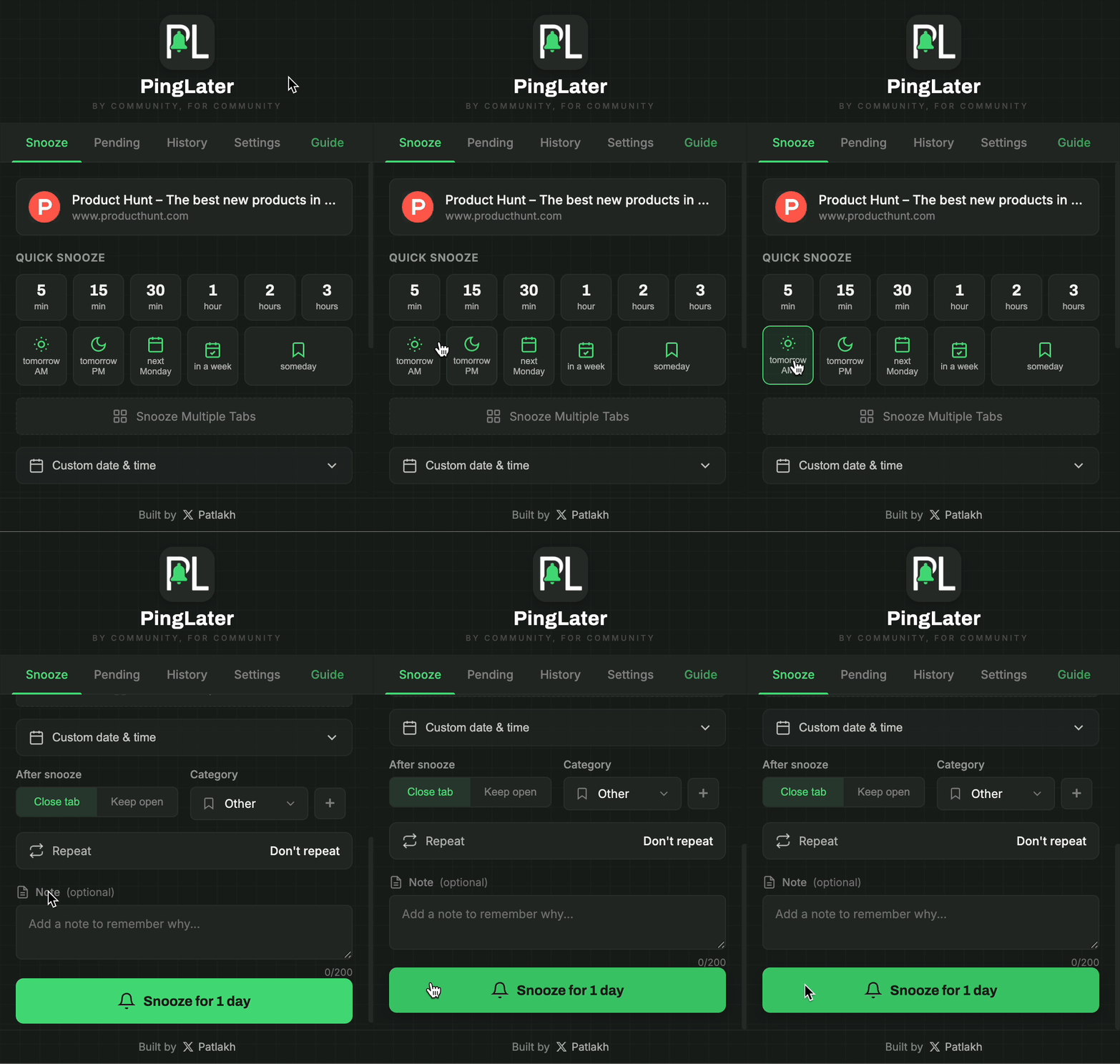
See it in action

Clean. Simple. Powerful.

Quick snooze demo

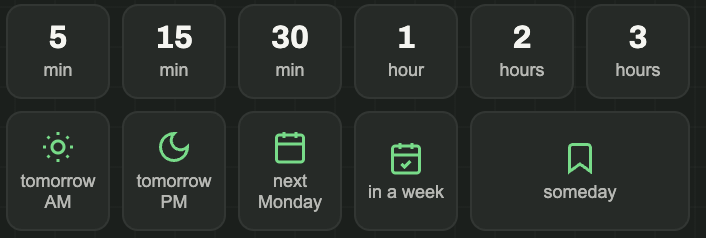
Quick Snooze

Two clicks — tab comes back when you need it
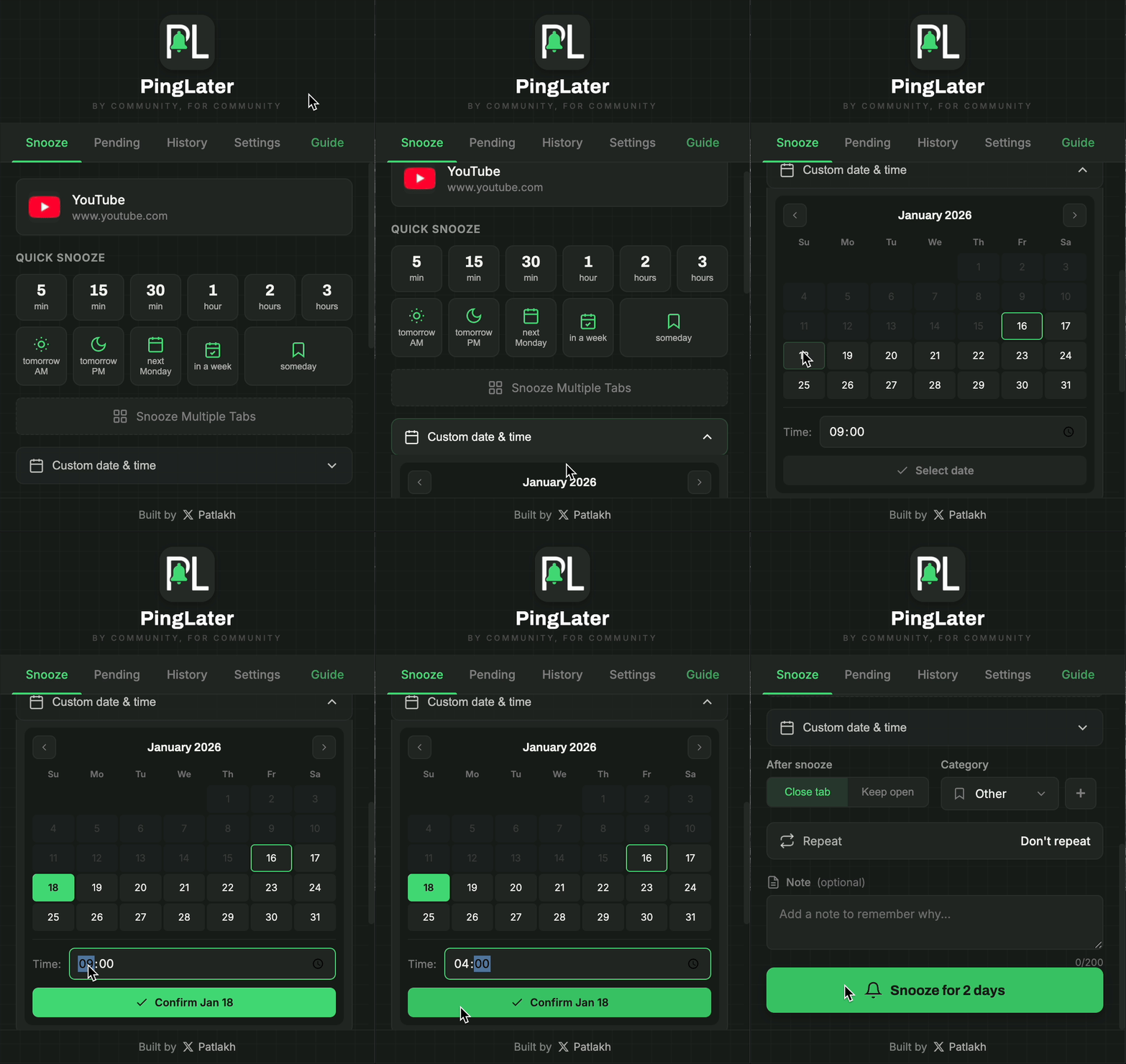
Custom date and time demo

Custom Date & Time

Pick any date and exact time for your reminder
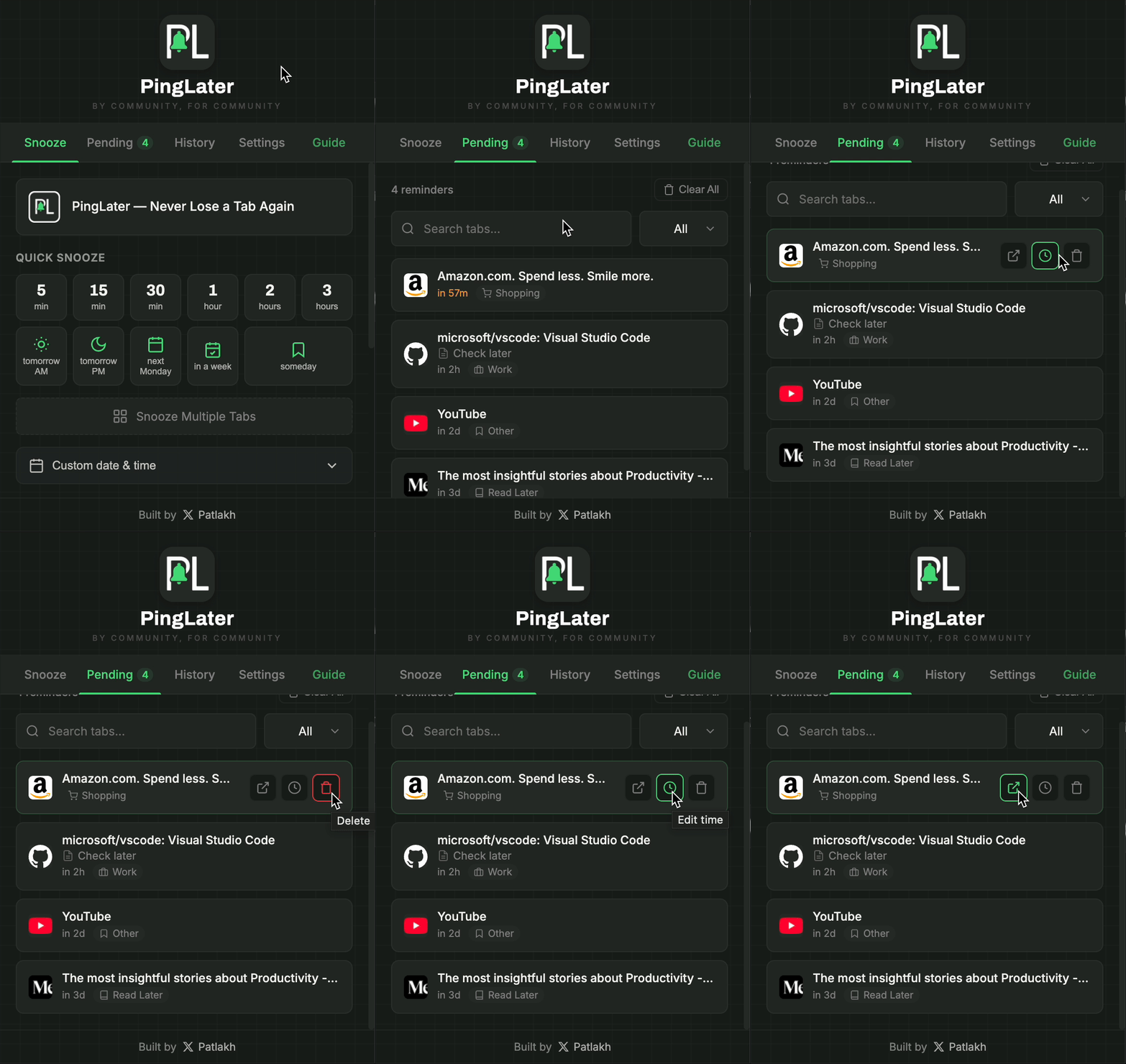
Pending tabs demo

Organized Pending

All snoozed tabs in one place, ready to manage

How it works

Three clicks to freedom

1

Open & Pick Time

Click the PingLater icon and choose when you want the tab back.
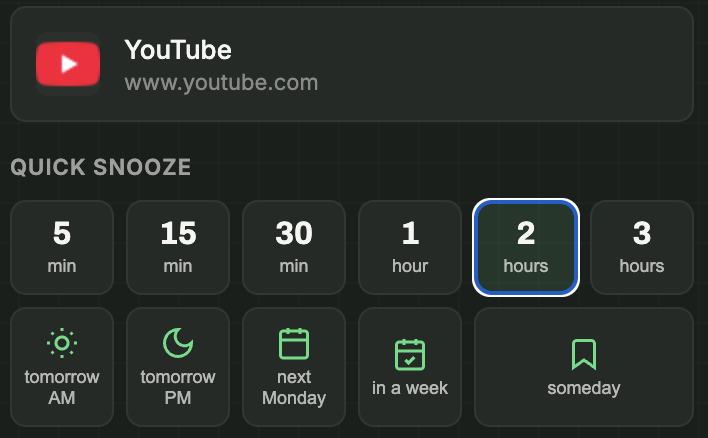
Step 1: Open PingLater and pick time
2
Optional

Customize

Keep tab open, pick a category, or set up recurring reminders.
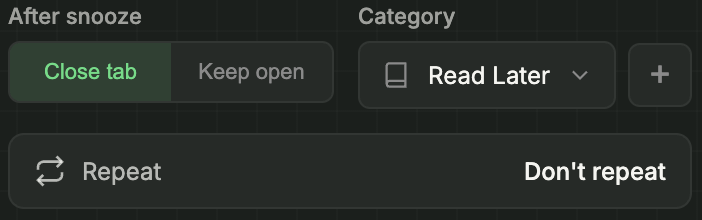
Step 2: Optional settings
3
Optional

Add a Note

Leave yourself a reminder why you saved this tab.
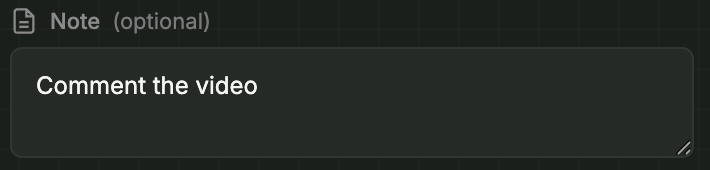
Step 3: Add a note
4

Hit Snooze

One click and your tab is scheduled. Done.

Step 4: Hit Snooze
5

Get Reminded

Your tab reopens with a notification. Need more time? Reschedule right from the popup.
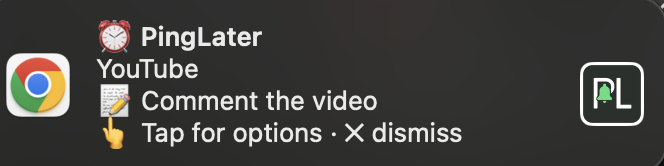
Step 5: Get reminded
💡
Pro tip

Right-Click Snooze

Right-click anywhere on a page to quickly snooze without opening the extension.
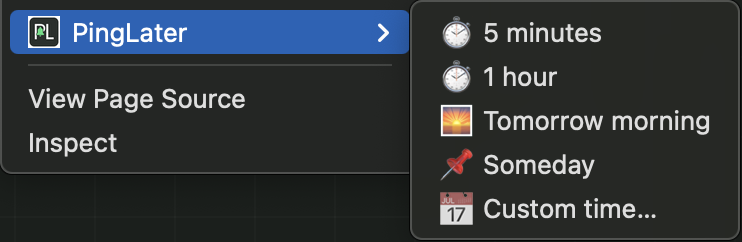
Pro tip: Right-click snooze
Features

Everything you need.
Nothing you don't.

Quick Snooze screenshot

Quick Snooze

One click to snooze — or save to "Someday" for later. Tab closes or stays open.
Recurring Reminders screenshot

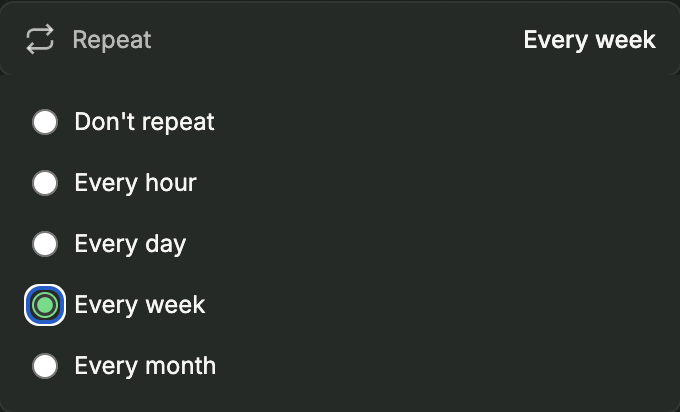
Recurring Reminders

Set hourly, daily, weekly, or monthly repeating reminders.
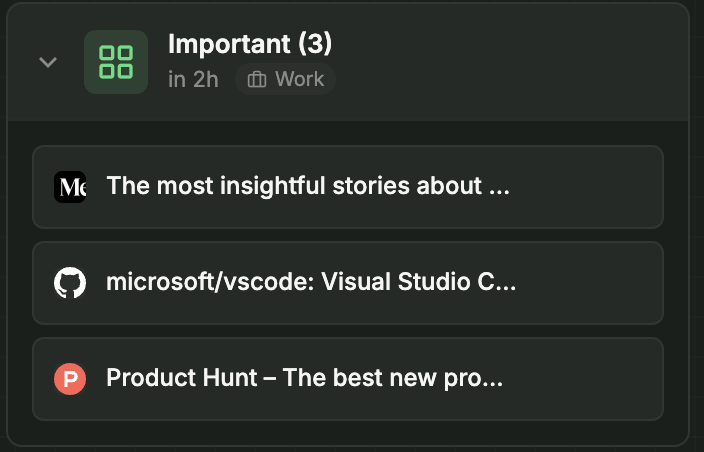
Multi-Tab Groups screenshot

Multi-Tab Groups

Snooze multiple tabs at once. Name your groups for easy organization.

Smart Reminders notification

Smart Reminders

Missed a reminder? No problem. It'll fire when you're back online.
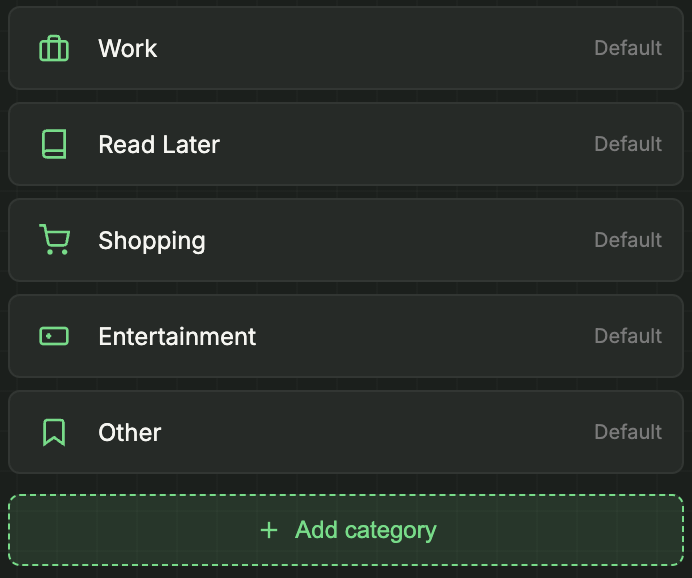
Categories screenshot

Categories

Organize with custom categories: Work, Read Later, Shopping — you name it.
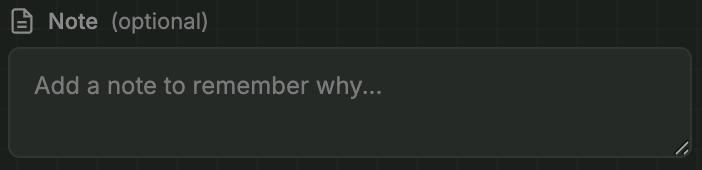
Notes screenshot

Notes

Add a note to remember why you saved it. Shows up in the notification.
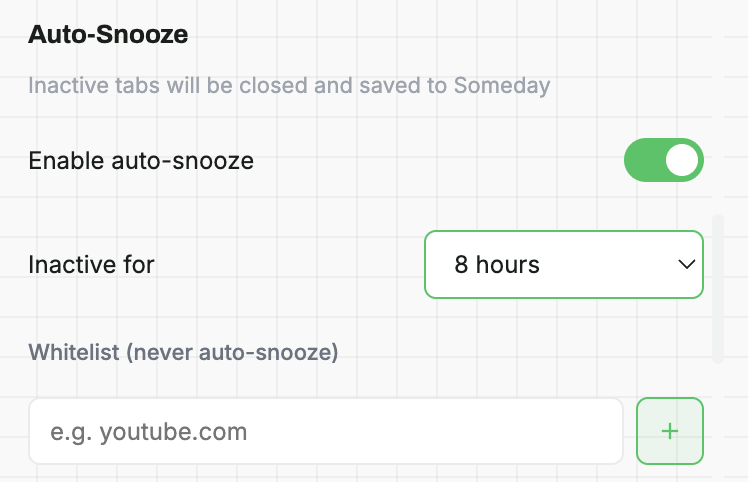
FAQ

Questions? Answers.

Yes! PingLater is completely free with all features included. No hidden limits, no paywalls. My goal is to build a product people genuinely love to use. Down the road, I may explore optional premium features to help cover development time.
Nope! Just install and use. No sign up, no email, no password. Your data stays in your browser.
If Chrome was closed when a reminder was due, it will fire as soon as you open your browser. You'll never lose a tab.
Yes! All your data is stored locally. The extension works completely offline — no internet needed.
100% private. Your tabs, notes, and reminders never leave your computer. We don't collect any data, don't have servers, and don't track you.
We're focused on Chrome for now, but Firefox and other browsers are on our radar. Follow us on X for updates!
Troubleshooting

Notifications not working?

macOS

Notifications not appearing?

  1. Open System Settings
  2. Go to Notifications
  3. Find Google Chrome in the list
  4. Enable Allow Notifications
  5. Make sure Focus Mode is off

Windows

Notifications not appearing?

  1. Open Settings (Win + I)
  2. Go to System → Notifications
  3. Make sure notifications are On
  4. Scroll down and find Google Chrome
  5. Enable notifications for Chrome
  6. Disable Focus Assist if active

Still having issues? Make sure Chrome is updated to the latest version and try restarting your browser.

Ready to declutter your browser?

Join the community of people who finally have their tabs under control.

Add to Chrome — Free
No sign up Works offline Privacy first